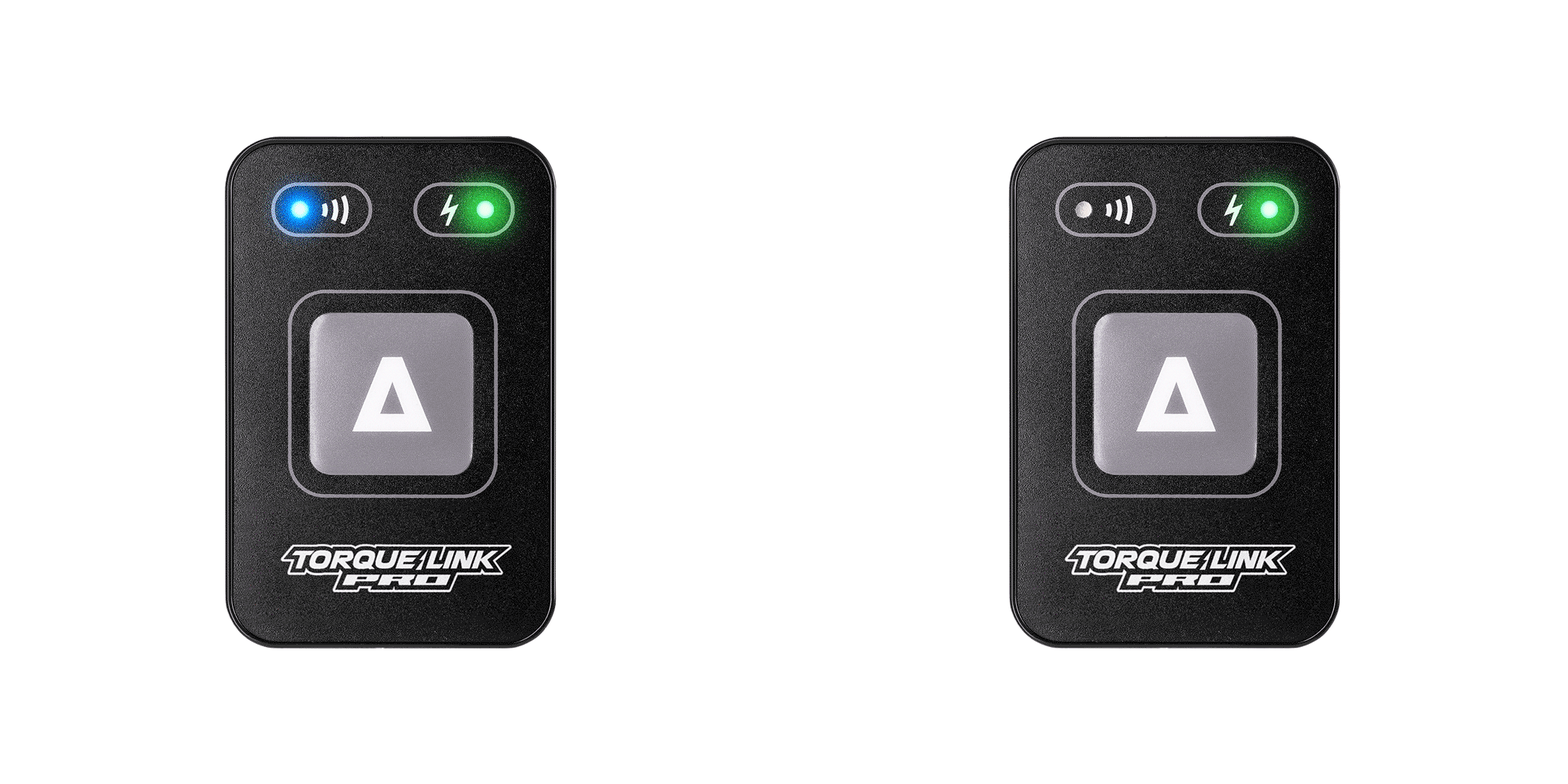
Connect Torque Link Pro to smartphone
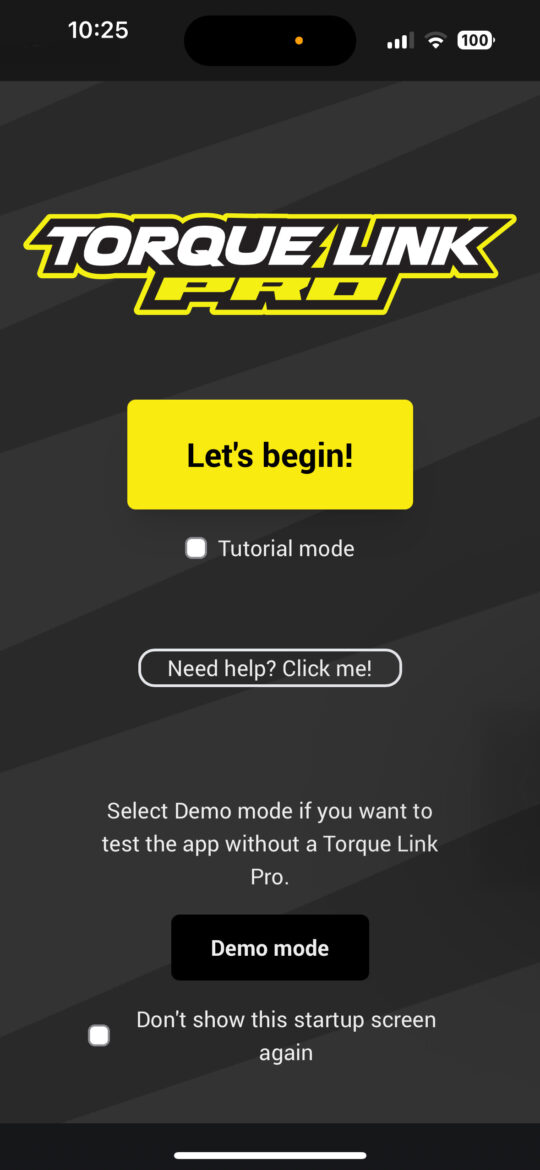
Now open the Torque Link Pro App on your phone. You will be met by this start-up screen.
- By selecting the checkbox Tutorial mode the app will enable on-screen guidelines on how to perform the first steps with connecting to your Torque Link Pro and adding your vehicle. You can enable or disable tutorial at anytime from the settings in the app.
- Demo mode allow you to play around with the app in full functionality mode against factitious vehicles.
Press the button Let’s begin! to get started.
You now have three options to continue:
- Create an account with a license code
- Create an account without a license code
- Log in with your existing account.
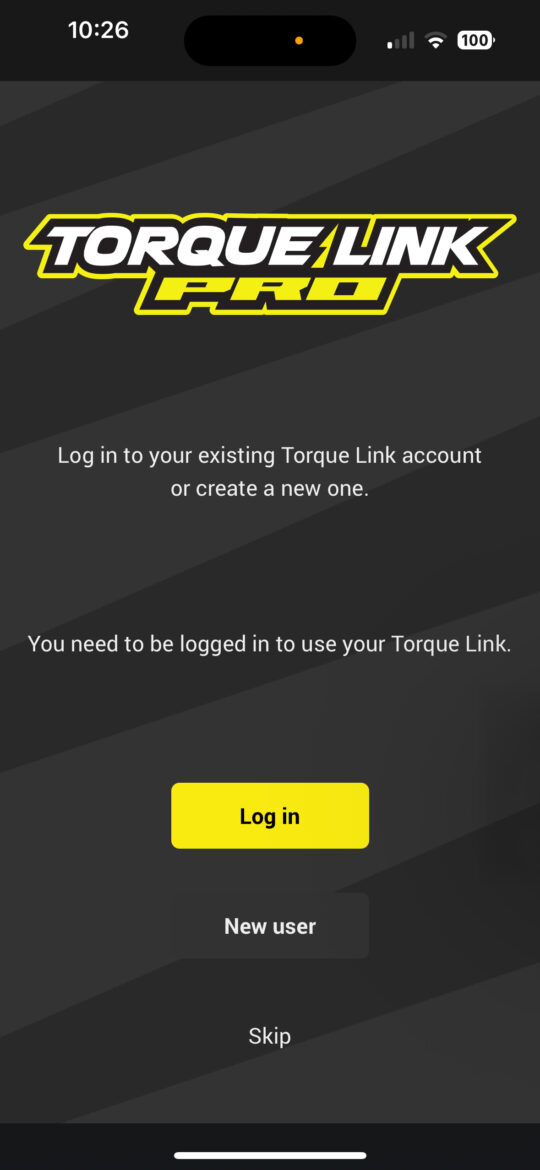
1. Create an account with a license code
- Press New User.
- Select Continue with license code.
- Follow the on-screen instructions to complete your registration.
Your license code has the format xxxxx-xxxxx-xxxxx-xxxx and is provided by your dealer.
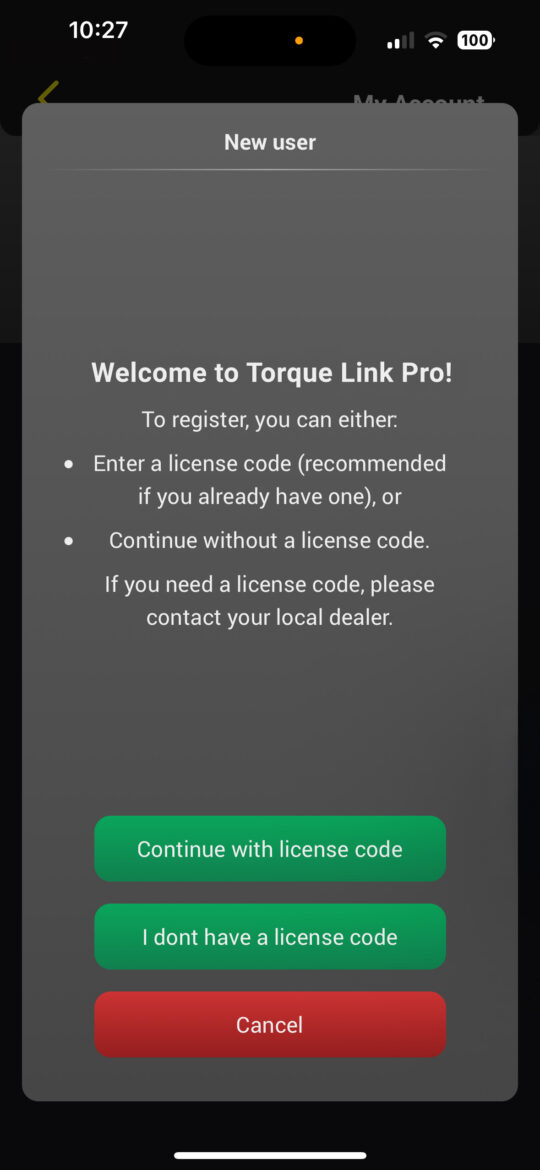
2. Create an account without a license code:
- Press New User.
- Select I don’t have a license code.
- Follow the instructions to first connect your Torque Link Pro (see instructions further down on this page), then complete the registration forms.
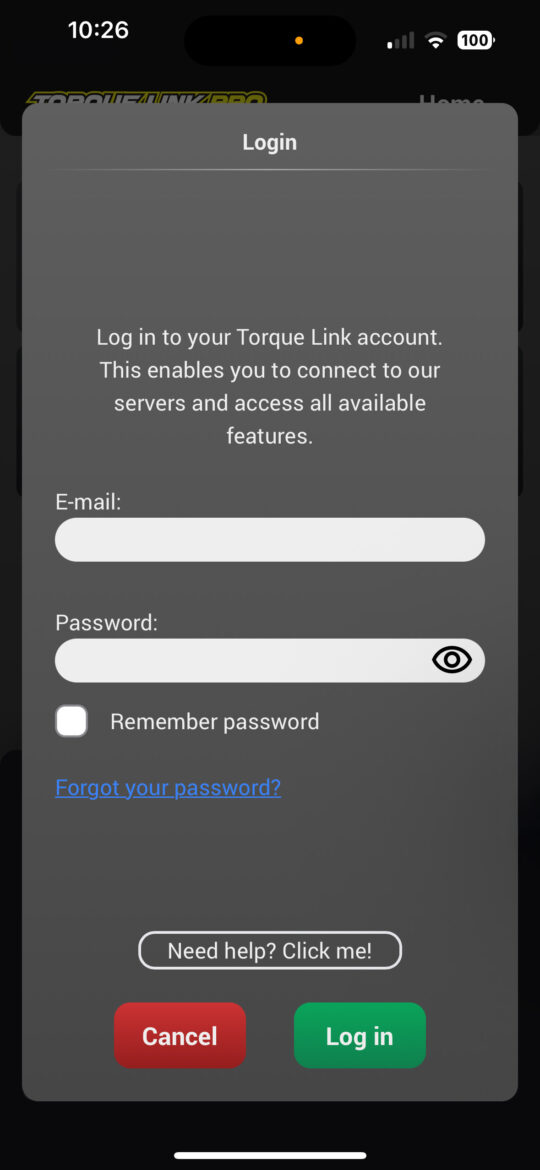
3. Log in with your existing Torque Link Pro account.
If you already have an account, simply press Log in and enter your credentials.
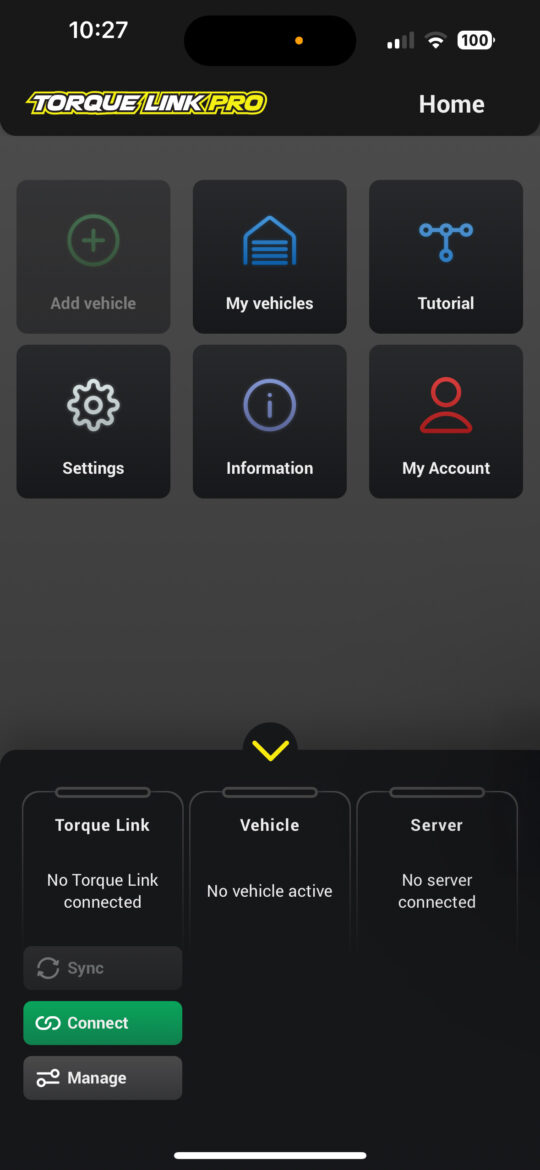
This is the Home screen. At the bottom you’ll find the Control Center. From here you can connect to your Torque Link Pro device, see vehicle status and other information at a glance.
The Control Center is expanded by default but can be minimized by pressing the arrow on top of it.
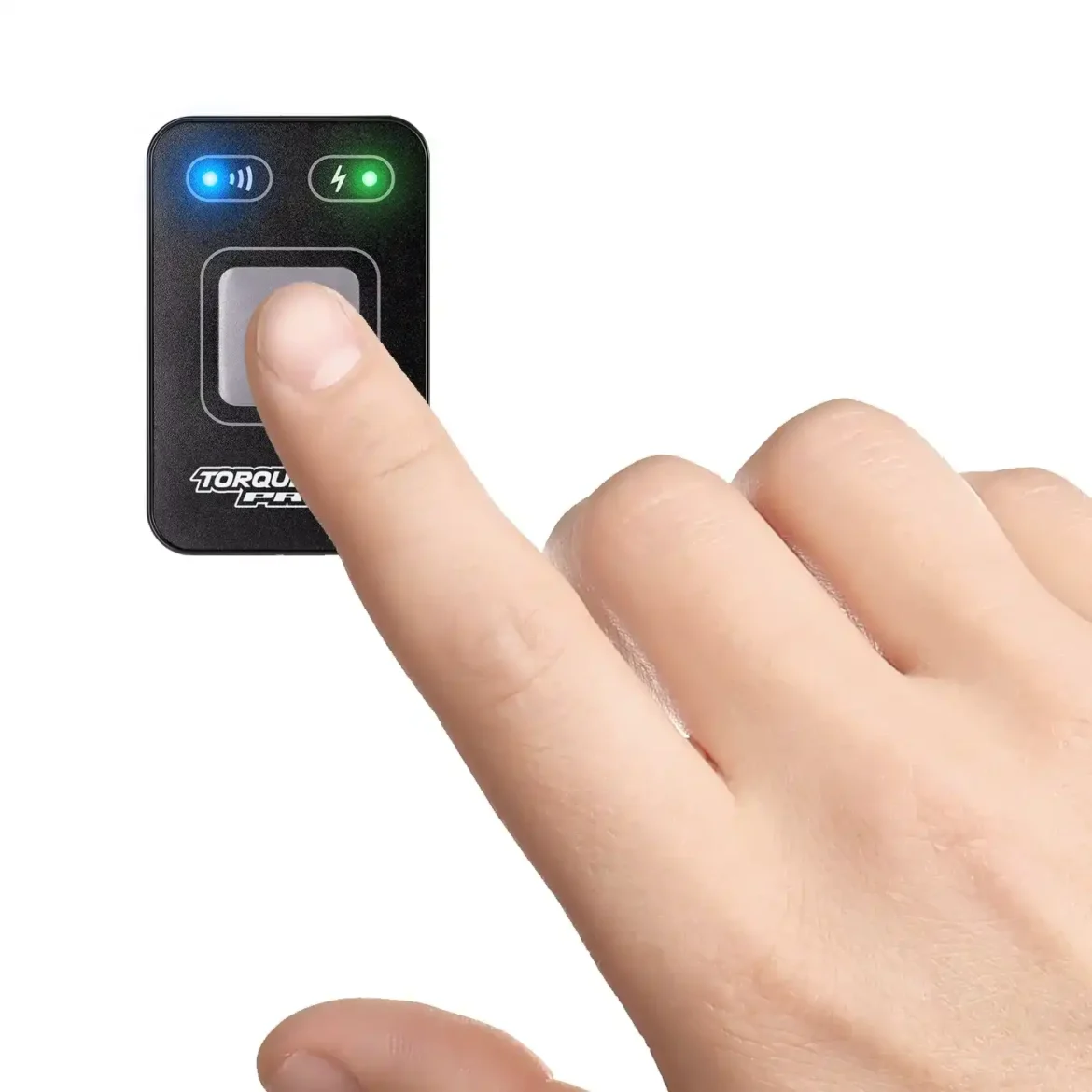
Before you can connect your Torque Link Pro device to the Torque Link Pro App, press and hold the button (approx. 2-3 sec) on the Torque Link Pro until the top left LED starts flashing blue rapidly.
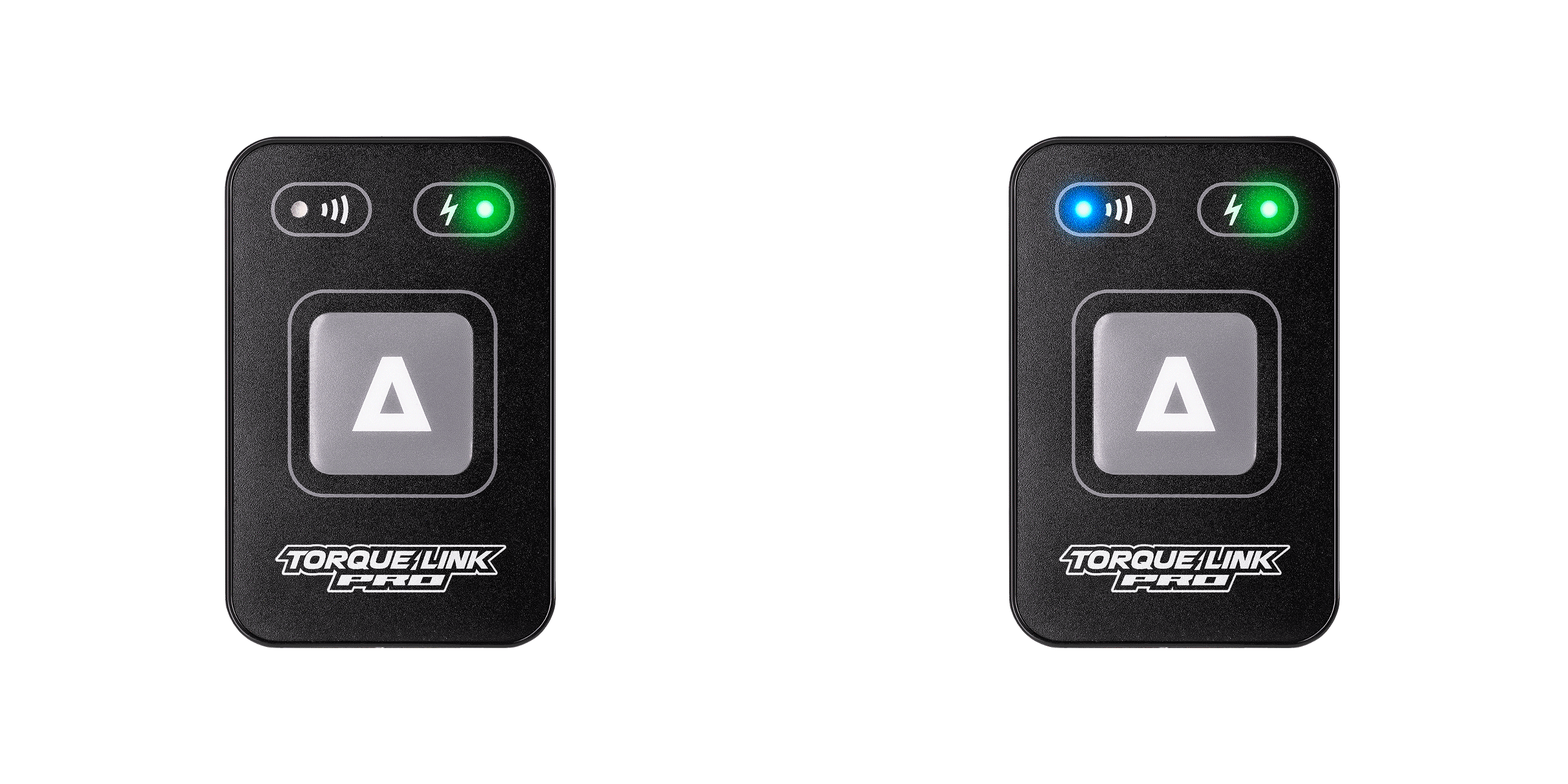
The Torque Link Pro is now in pairing mode for 30 seconds.
Press the connect button in the Control Center and then select your Torque Link Pro from the list that appears.
Can’t find you Torque Link Pro in the list? Make sure the Torque Link Pro is in pairing mode and try again. Otherwise contact your dealer for help and advice.
Important: Do not use your phone’s Bluetooth-manager to connect to your Torque Link Pro. Only use the Torque Link Pro App. If you already connected thru your phone’s Bluetooth-manager, please select ”forget device” and try again with the Torque Link Pro App.
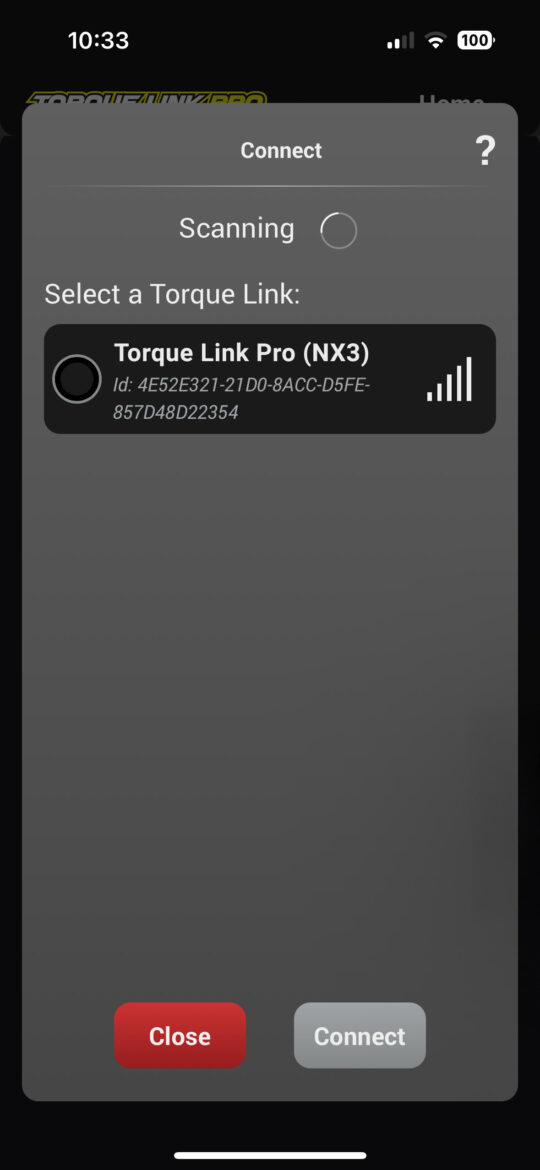
Your Torque Link Pro should now be connected to the Torque Link Pro App. This is illustrated by a green bar in the Control Center on top of the Torque Link Pro area. The Torque Link Pro device itself also has a slow flashing blue LED indicating that it’s connected wirelessly.